Already have a deck you made somewhere else? Import it into Decktopus to get a trackable link and see exactly how viewers engage with it, without rebuilding anything.
Available on Pro and Business plans.
Supported Formats
PowerPoint (PPTX)
HTML
How to Import a Presentation
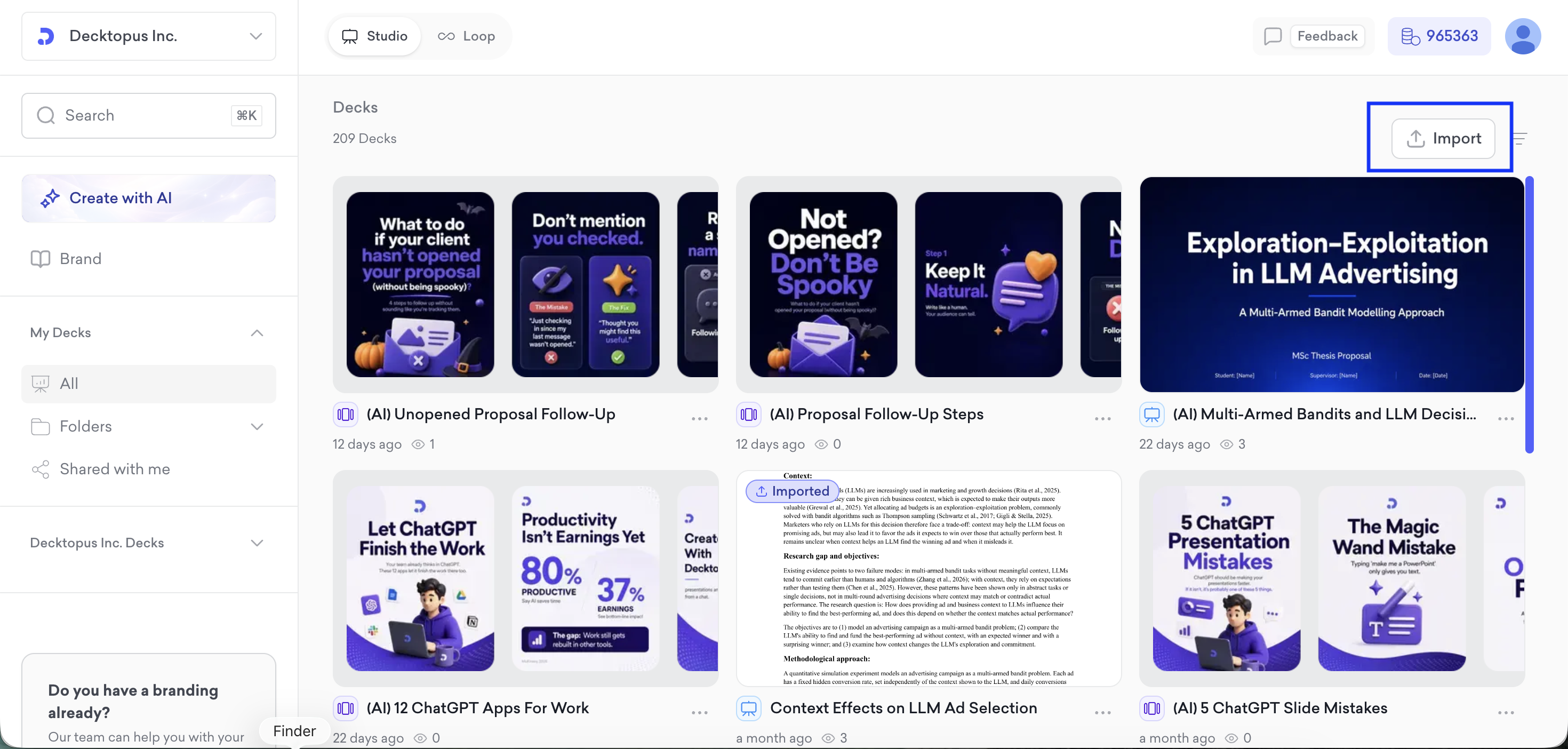
On your dashboard, click Import at the top right, above your deck list
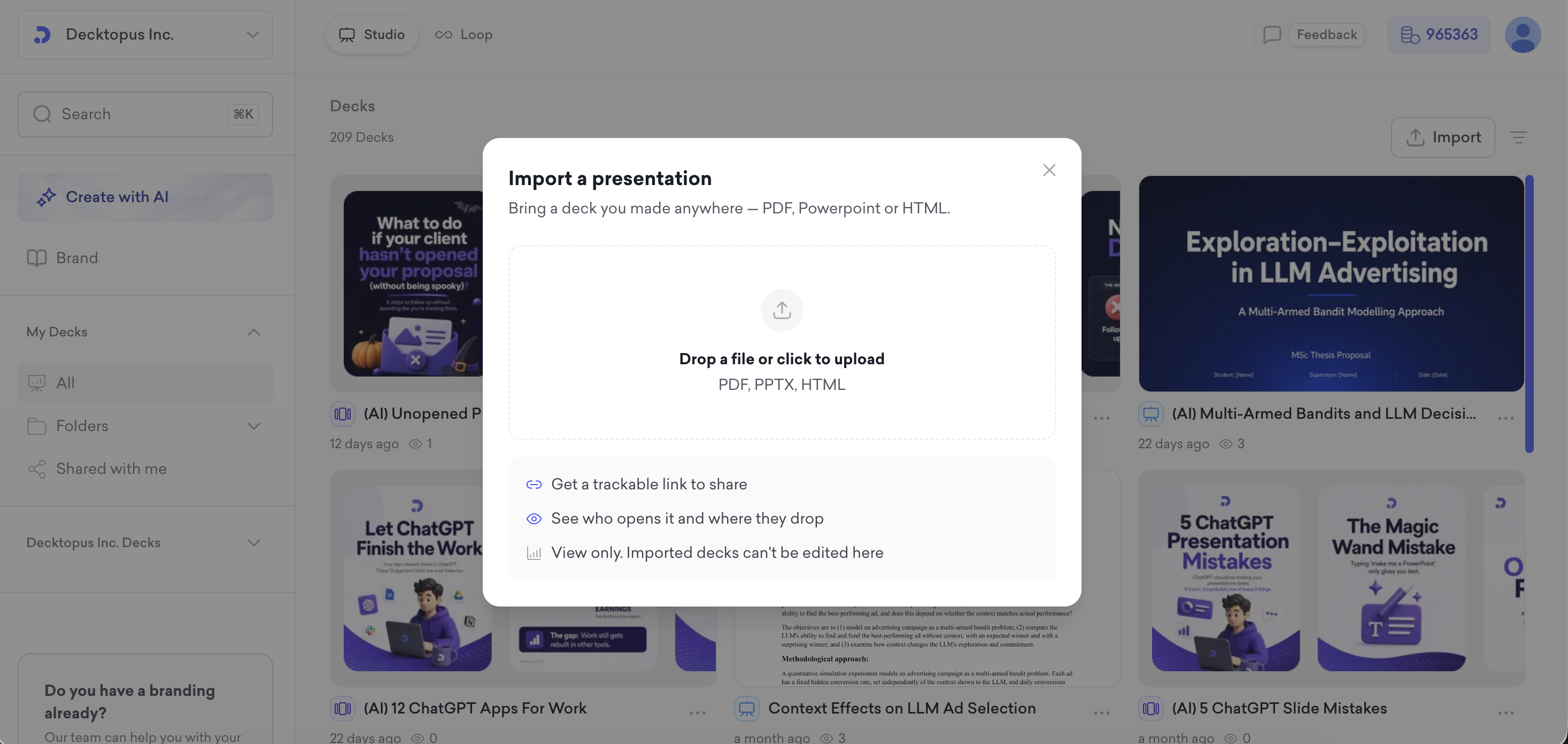
The Import a presentation window opens
Drop your file into the upload area, or click it to choose a file from your device
Your deck appears on the dashboard with an Imported badge
Open the deck, click Share, turn on Make share link public and copy your link
Once imported, your deck works like any other shared Decktopus deck:
Deck Analytics: see who opened it, how long they stayed, which slides held their attention and where they dropped off
Viewer feedback: viewers can react with an emoji or comment on any slide
Email Gate: require viewers to enter their email before they can open the deck
Separate links per recipient: create a share link for each person or audience to see who opened it and who didn’t
Good to Know
No AI credits used. Importing is free on Pro and Business plans.
Your slides stay exactly as they are. PDF and PPTX files are imported one slide per page, as images. HTML files are imported one slide per section.
Automatic naming. Decktopus names the deck based on what the slides are about.
Quick conversion. PDF and PPTX files take a few seconds to convert.
View only. Imported decks can’t be edited or regenerated with AI in Decktopus. To change the content, edit the original file and import it again. If you’d rather rebuild your deck with Decktopus AI, see the Beautify article.
Import from Claude, ChatGPT or Other AI Tools
If you’ve connected Decktopus to Claude, ChatGPT or another AI tool via MCP, you can ask the AI to import a file for you. It uploads the file and gives you the share link, ready to send and track.
That’s all!
For any questions, contact us at [email protected].
