Creating visual content for social media doesn't have to take hours. With Decktopus, you can generate a fully designed, card-by-card carousel just by describing your topic. Whether you're sharing insights on LinkedIn or tips on Instagram, the AI handles the structure, design, and content so you can focus on what you want to say.
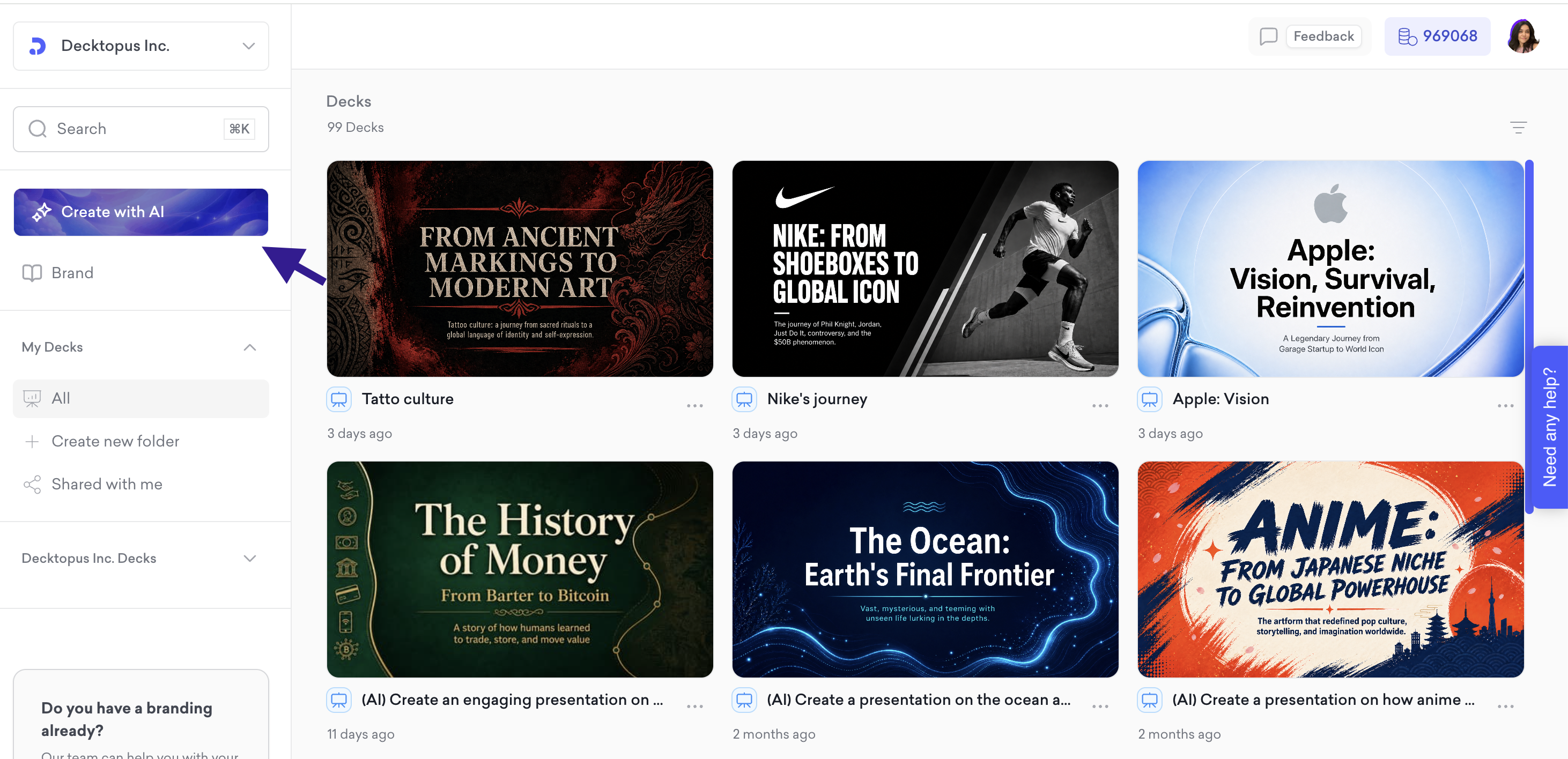
Go to your dashboard and click Create with AI
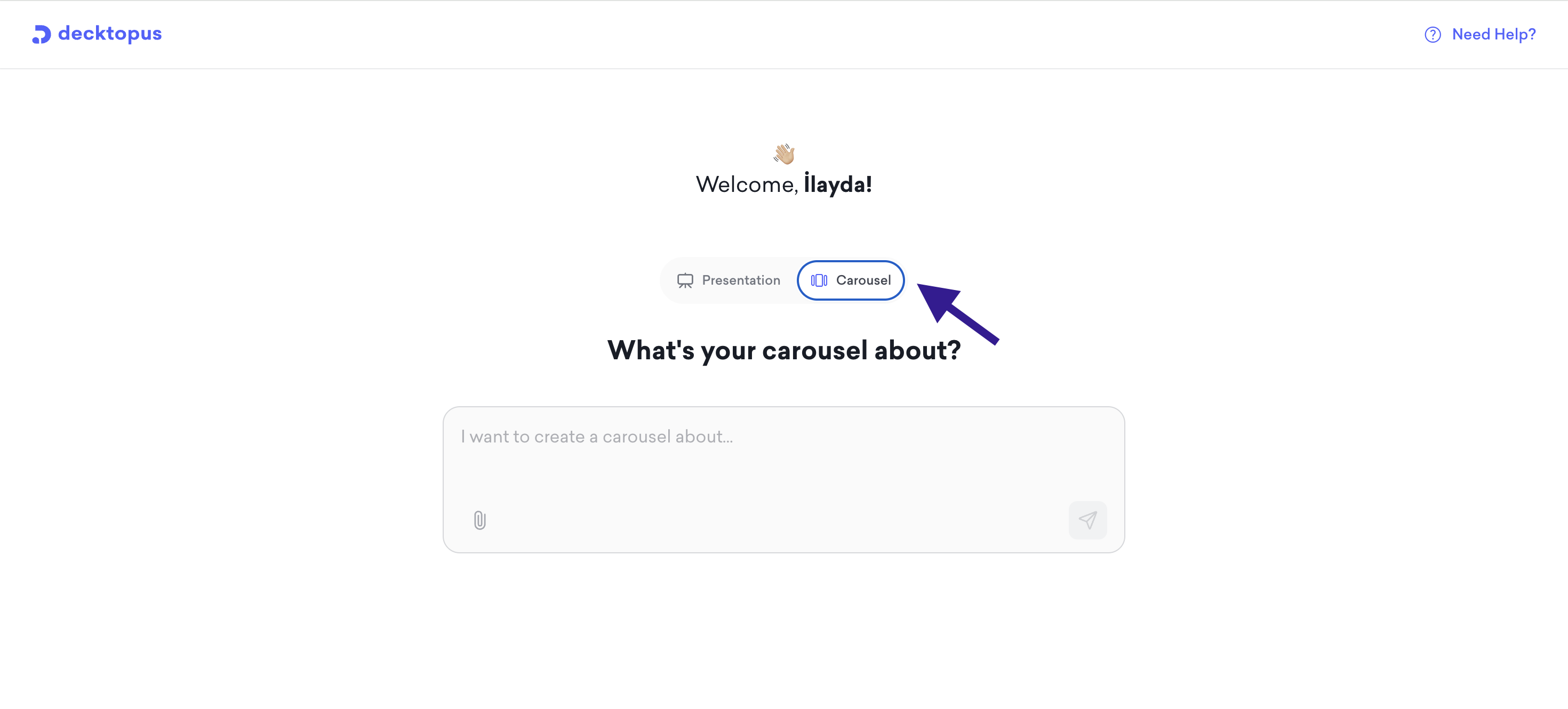
Select Carousel from the two options at the top
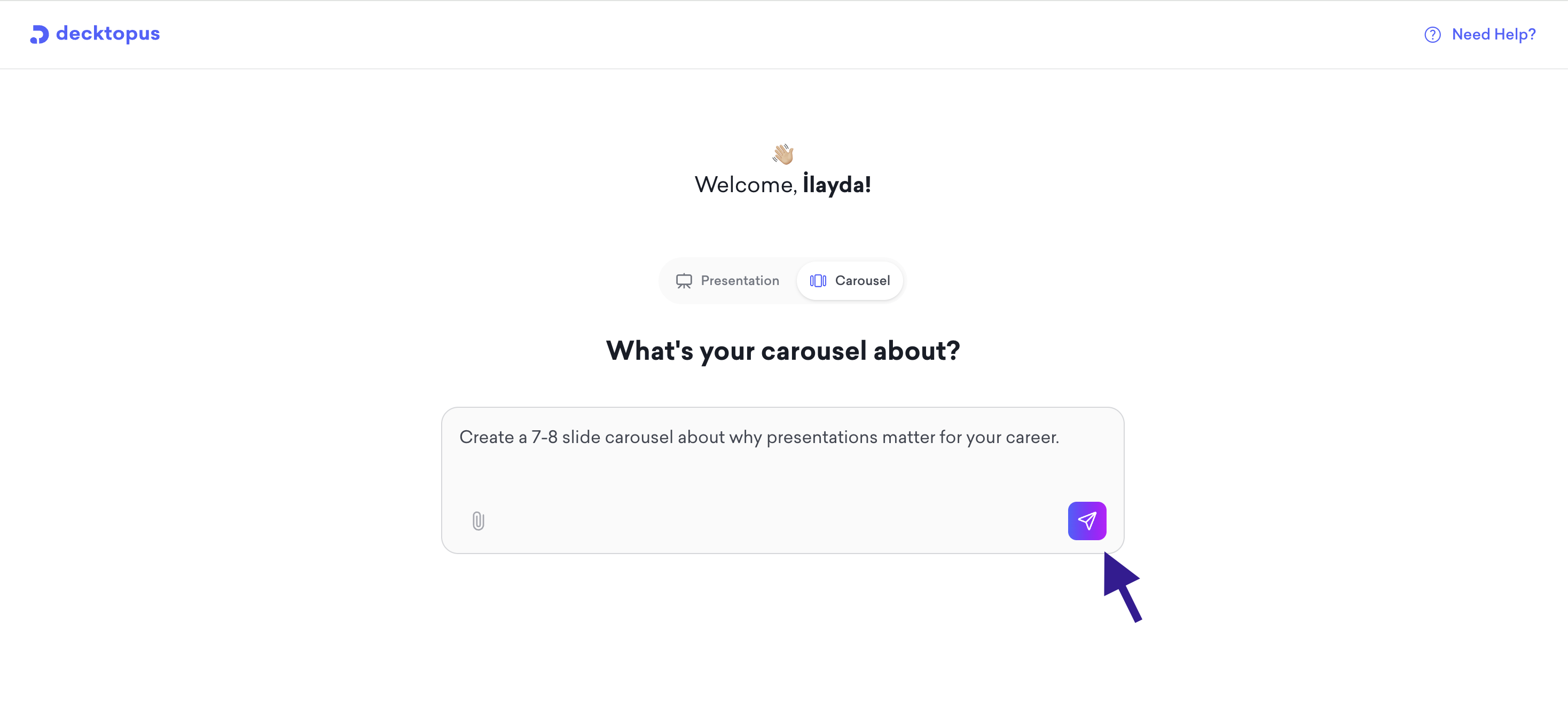
Type what your carousel is about in the prompt field. You can also attach a file for additional context
Click the send button to generate your outline
After submitting your prompt, you will be asked how your carousel should be styled. If you have created a carousel before, Decktopus will show your previously used styles as ready-to-pick options at the top. You can select one of these to keep a consistent look across your content.
If you'd prefer to start fresh, two options are available:
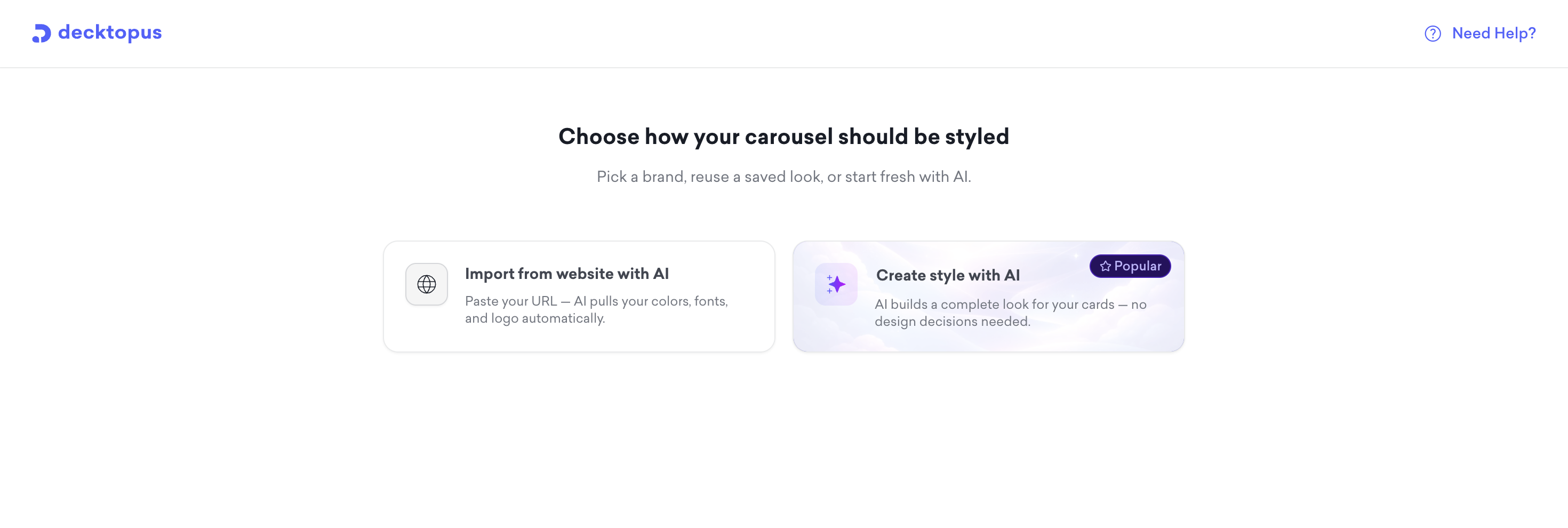
Import from website with AI: Paste your URL and the AI pulls your colors, fonts, and logo automatically
Create style with AI: The AI builds a complete look for your cards with no design decisions needed (recommended)
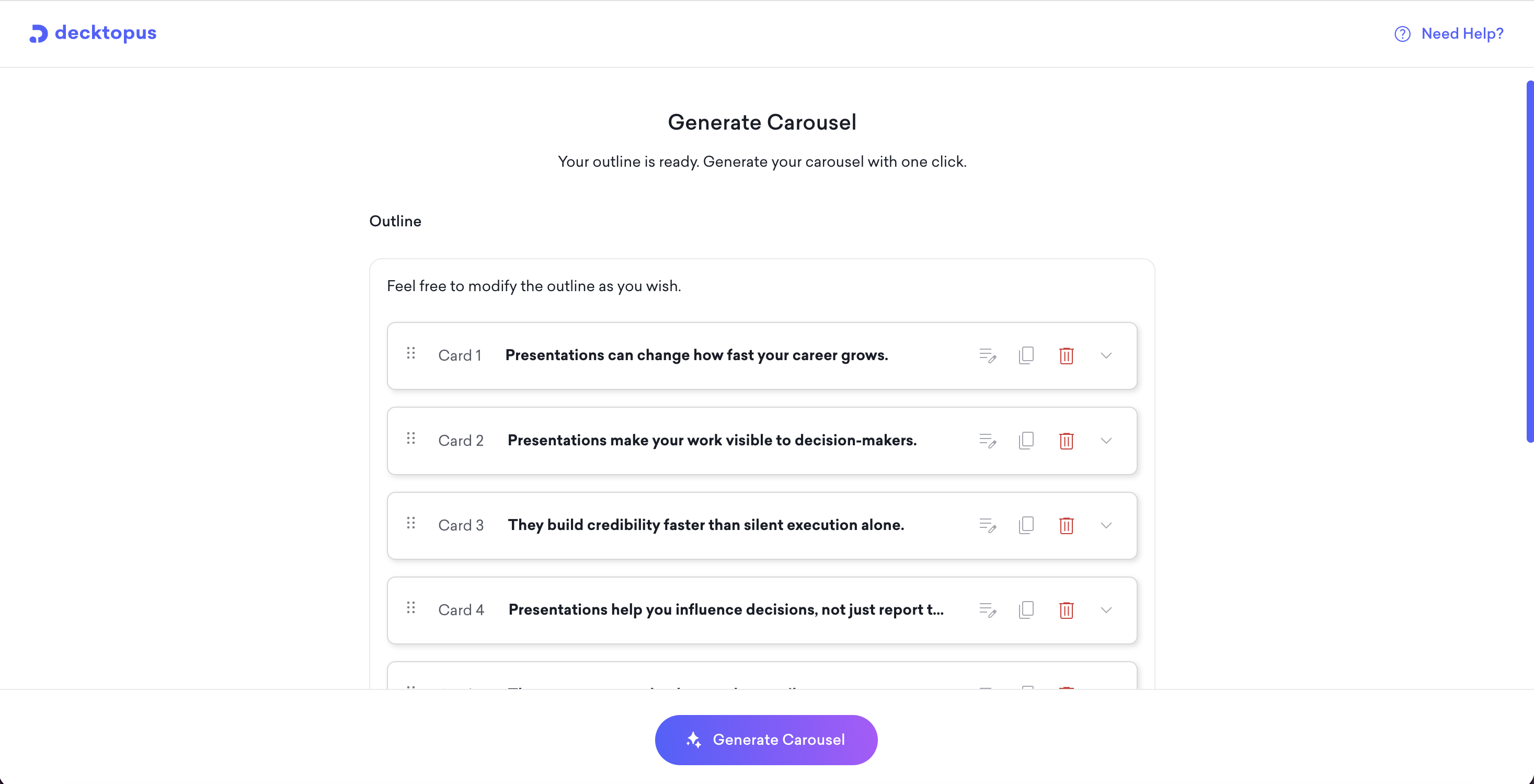
Before the carousel is generated, you will see a card-by-card outline. You can:
Edit card titles directly
Reorder cards by dragging
Duplicate or delete cards
Add new cards to the outline
When you are happy with the structure, click Generate Carousel.
Once generated, you can edit each card using the toolbar at the bottom of the screen.
Edit with AI
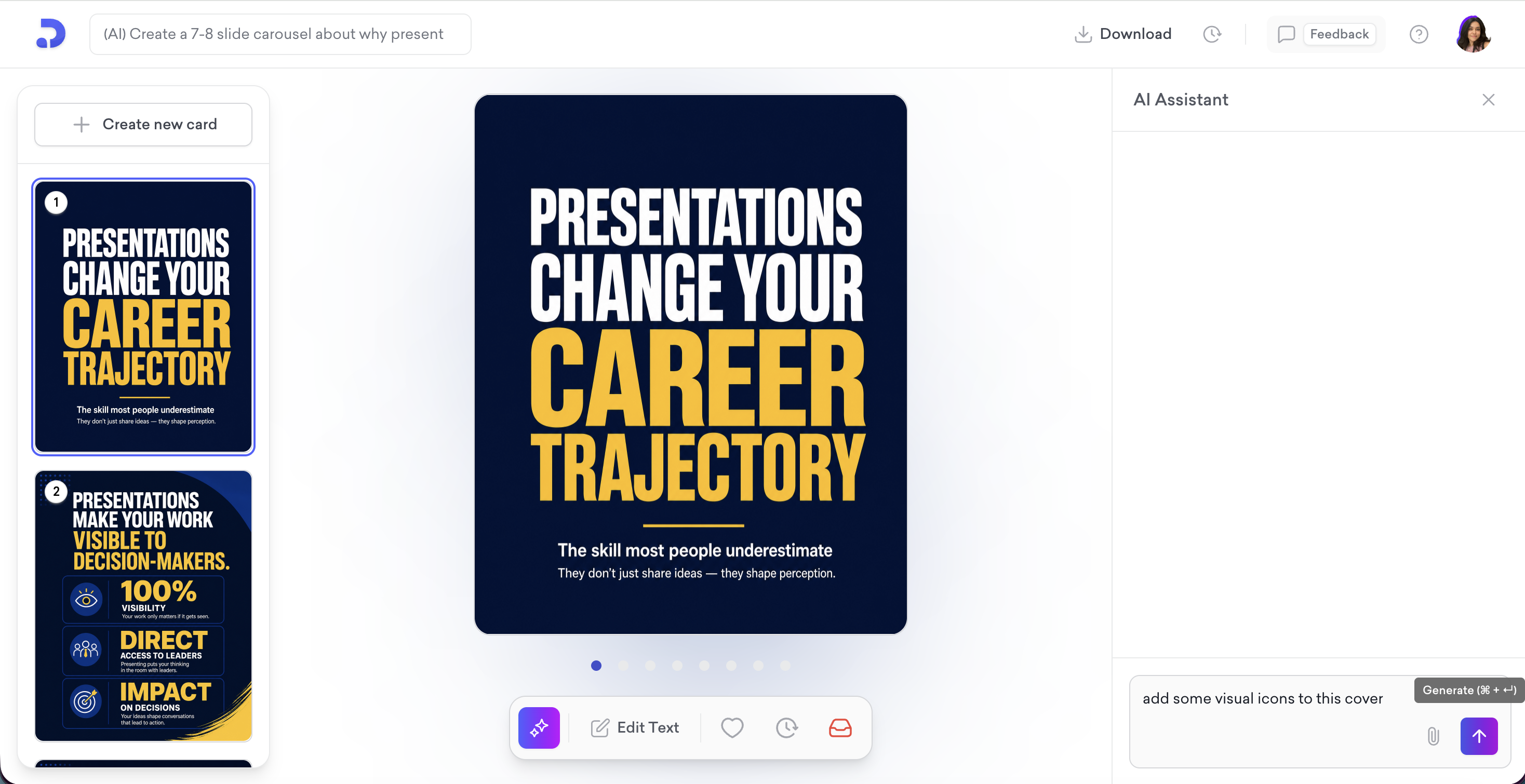
Type a prompt to change anything on the card: text, icons, images, layout, or style. The AI applies the change and shows a confirmation. You can undo if needed.
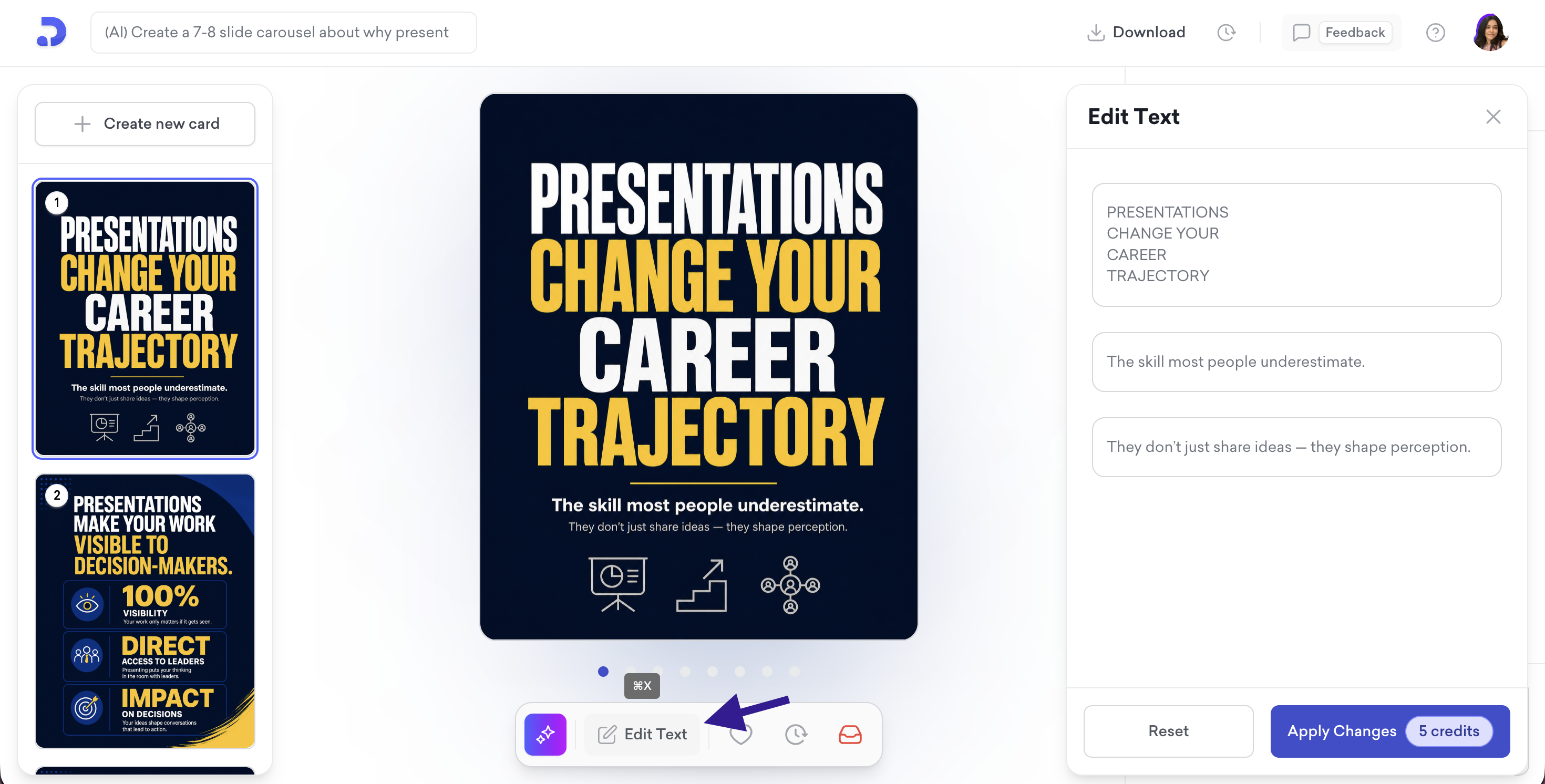
Edit Text
Opens a panel showing all text fields on the card as separate editable boxes. Make your changes and click Apply Changes (5 credits).
Add to Favorites
Add to Favorites: Click the heart icon to mark a card as a favorite. The heart turns red to confirm. This is a visual marker; clicking it again removes it.
Version History
Click the clock icon to access Version History and Archived Cards.
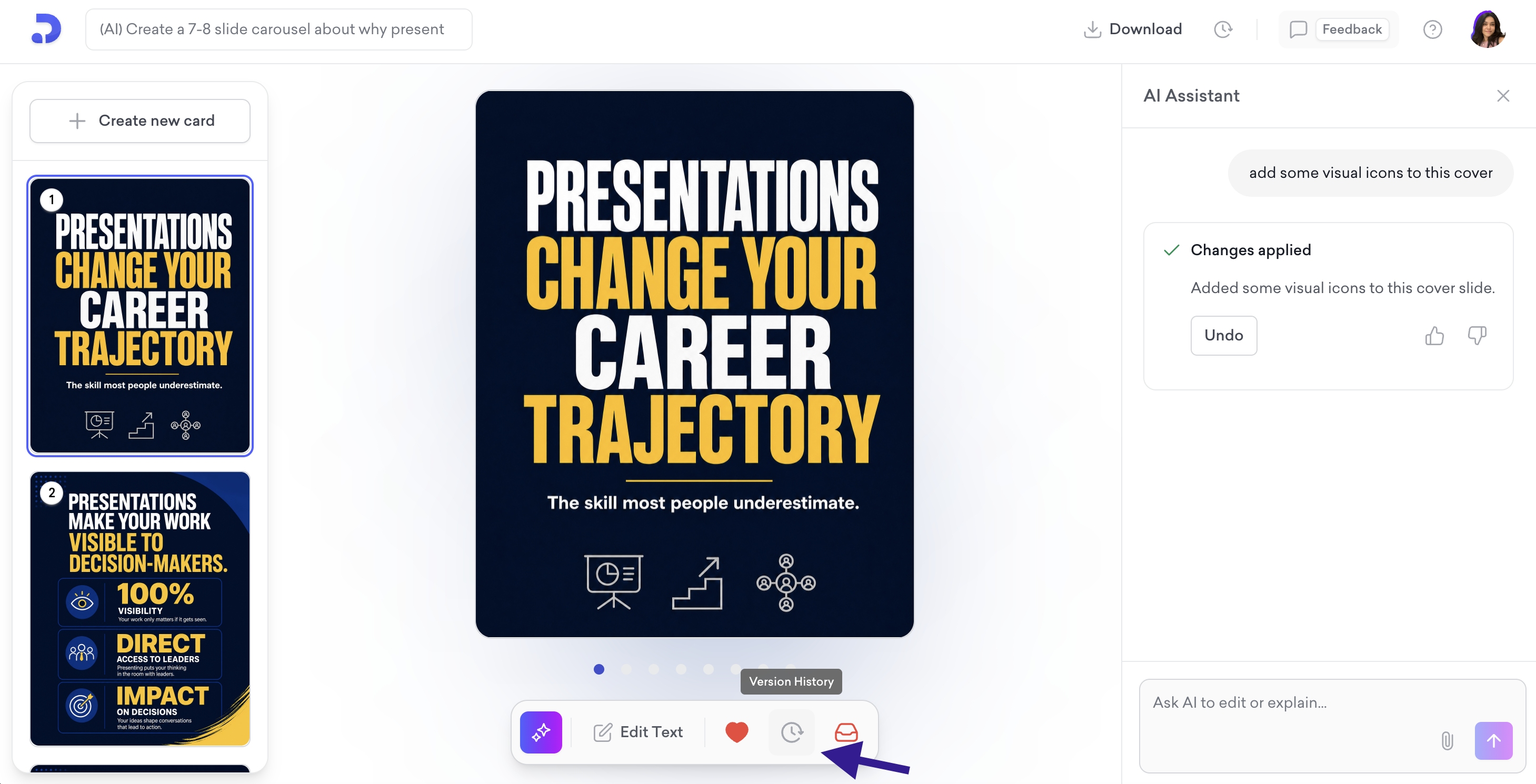
Archive
Click the red icon to remove a card from the carousel without permanently deleting it. Archived cards can be restored anytime.
Create New Card
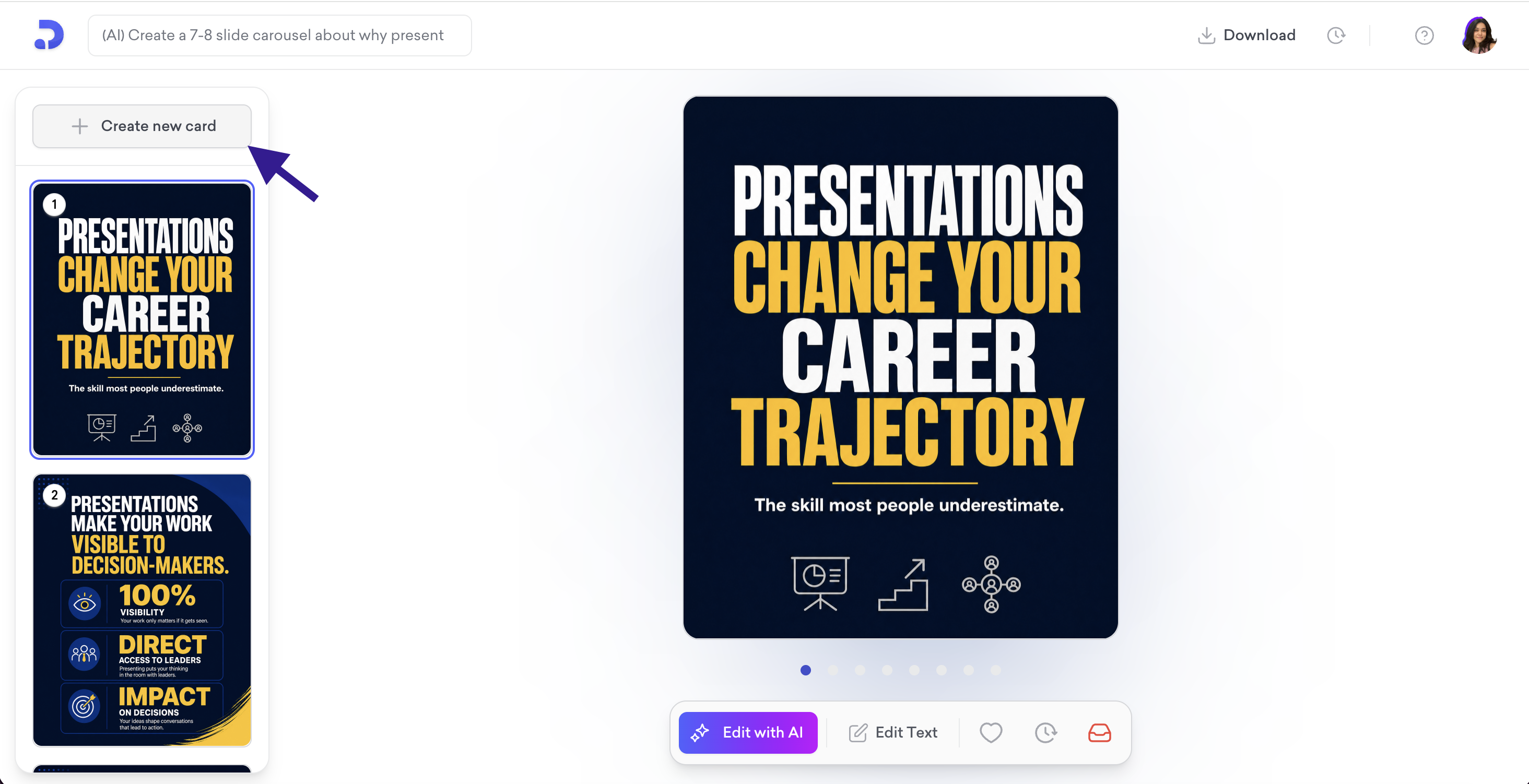
Click + Create new card at the top of the left panel. A blank card will be added to your carousel and the AI Assistant panel will open automatically on the right. Type what you want on the card and click the send button to generate it.
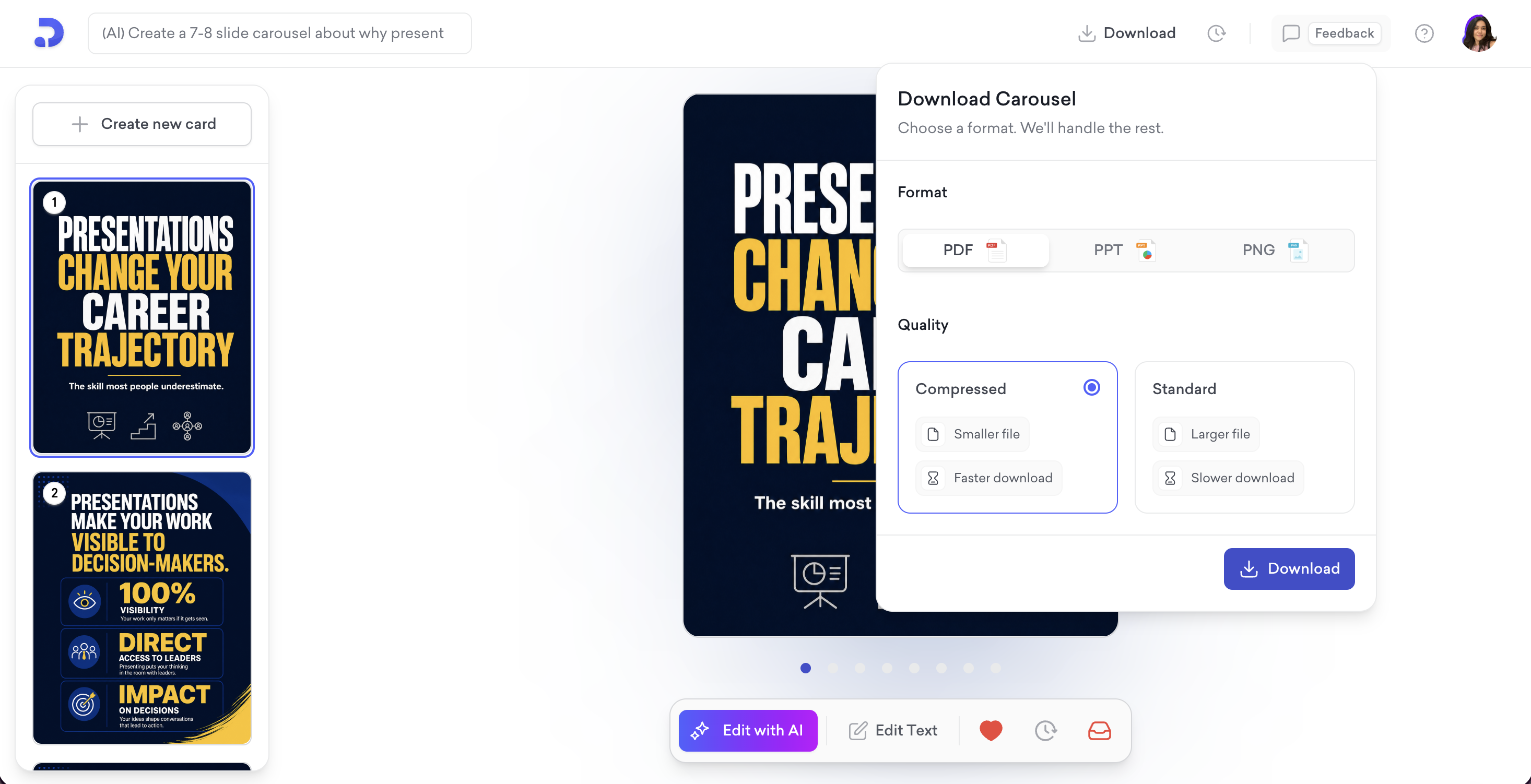
Click Download in the top right corner. Choose your format and quality:
Format
PPT
PNG
Quality
Compressed: smaller file, faster download
Standard: larger file, higher quality
Click Download to save your carousel.
That’s all!
Watch our step-by-step video tutorial to see the full carousel creation process in action.
For any questions, contact us at [email protected].
