
When you're working on a presentation and come across a slide that looks exactly right, you can mark it as a favorite to keep track of it. The heart icon in the toolbar lets you do this in one click, making it easy to identify your best slides at a glance.
How to Favorite a Slide
Open a presentation in the editor
Select the slide you want to mark
Click the heart icon in the toolbar at the bottom of the screen
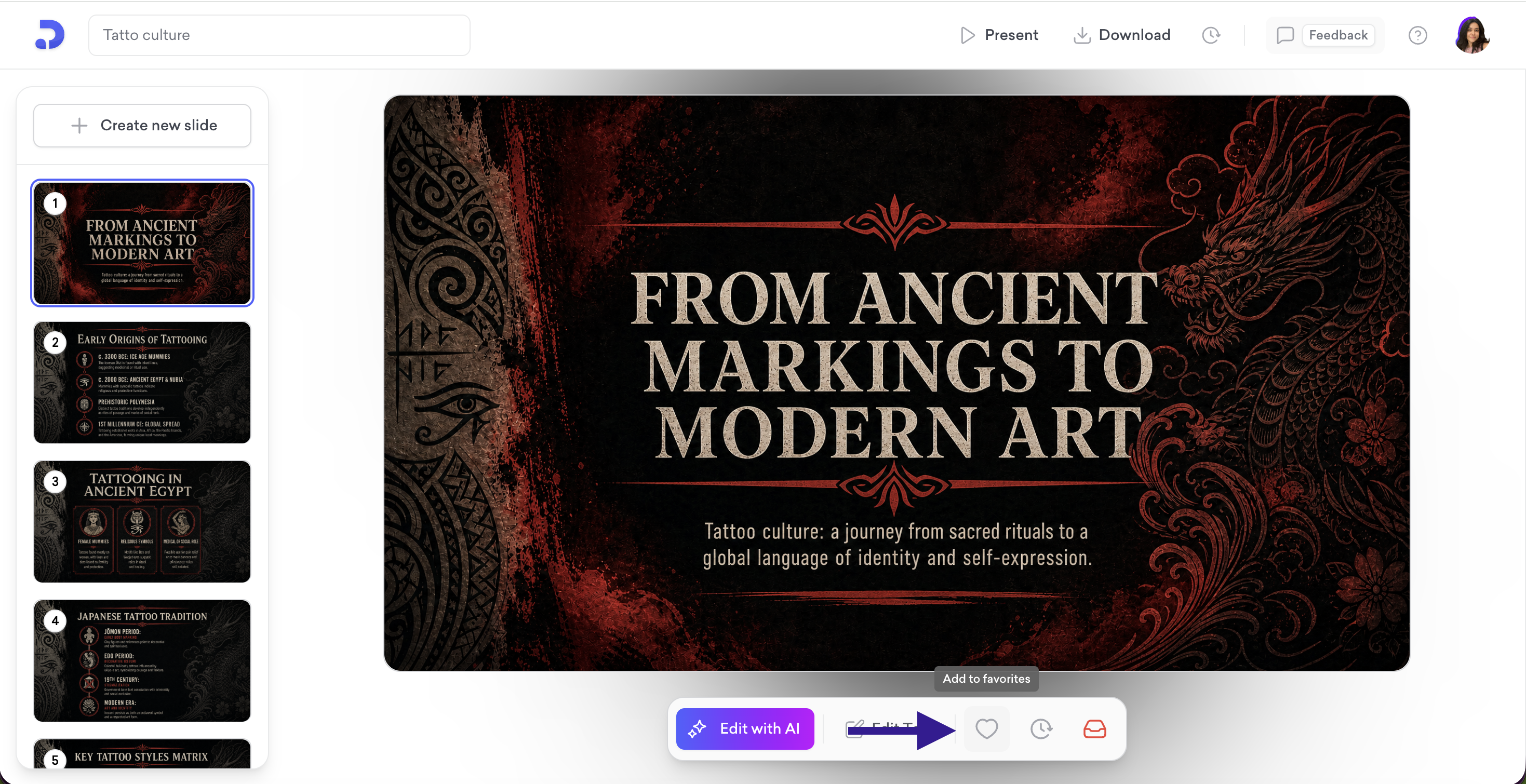
The heart turns red, confirming the slide has been marked as a favorite
To remove the mark, simply click the heart icon again and it will return to its outline state.
Favoriting a Slide from Version History
If you've made edits to a slide and preferred an earlier version, you can mark that version as a favorite directly from the Version History panel without restoring it.
Click the clock icon in the toolbar and select Version History
Browse through past versions of the slide
Click the heart icon next to the version you want to mark
That's all!
For any questions, contact us at [email protected]