
Here's how to do it:
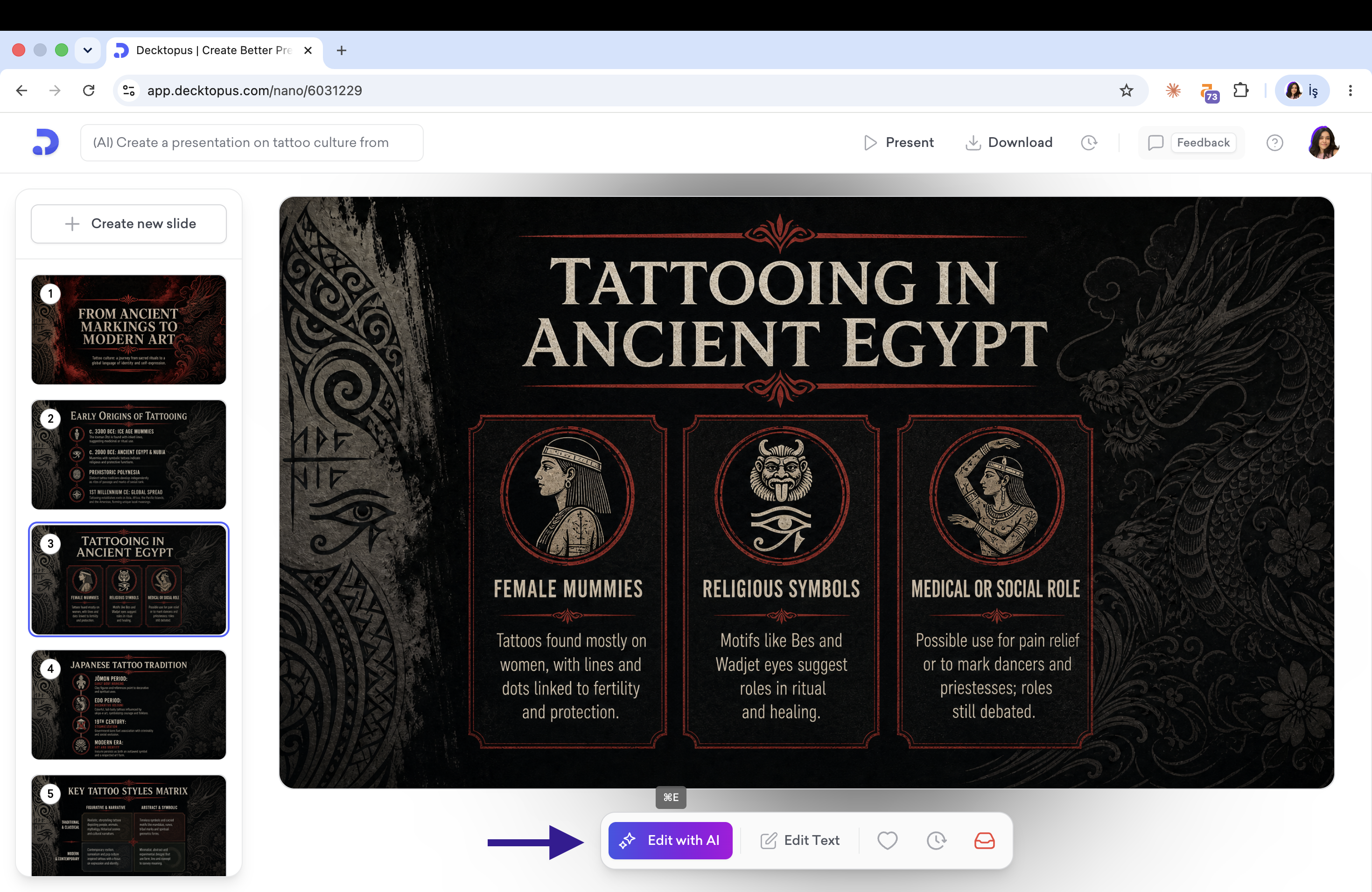
Open your presentation, select the slide, and click Edit with AI in the toolbar below the slide. This opens the AI Assistant panel on the right.
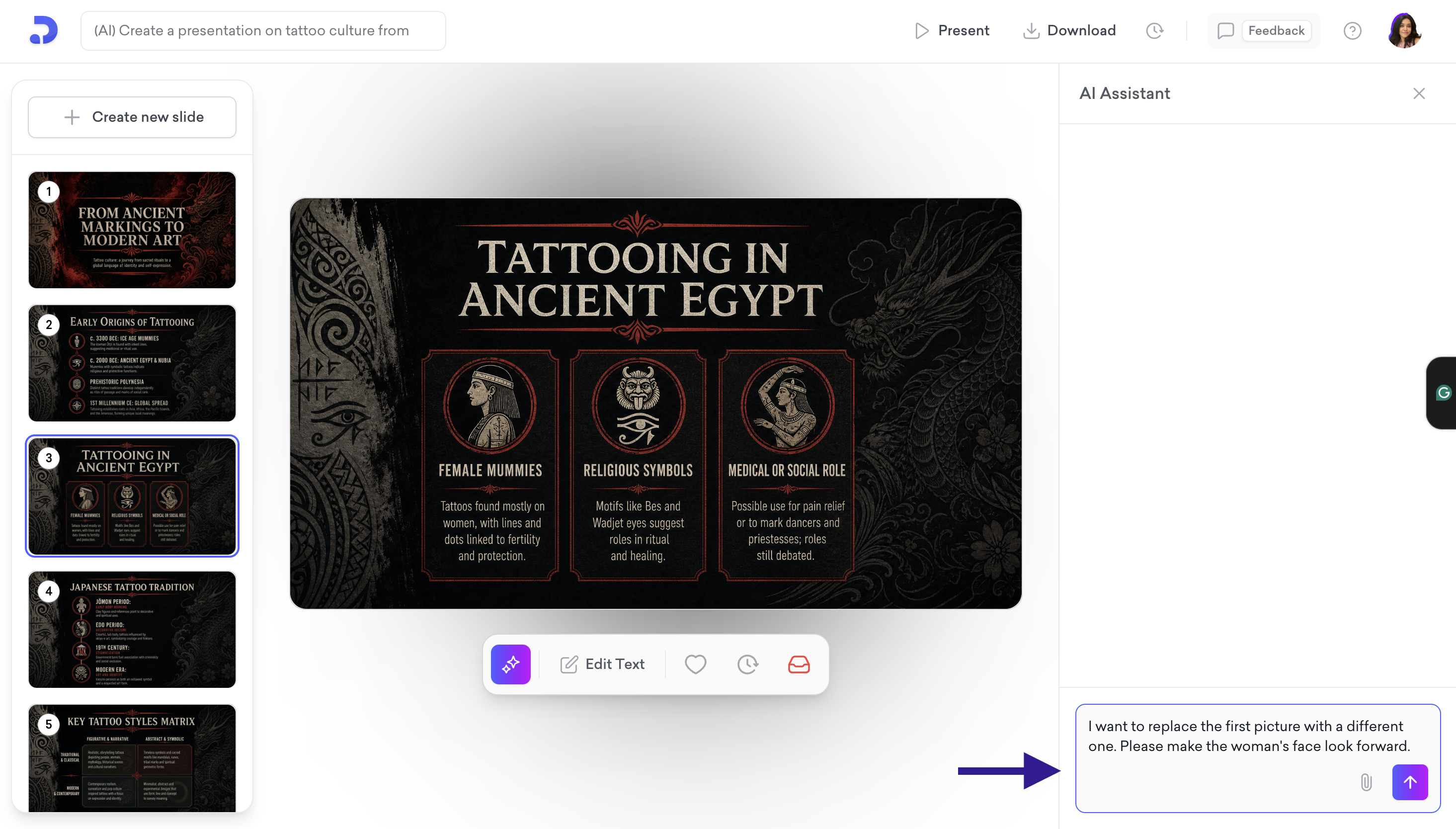
Type what you want into the chat box. For example: "I want to replace the first picture with a different one. Please make the woman's face look forward."
The AI Assistant will show you a summary of the change before applying it. You can edit the prompt before confirming.
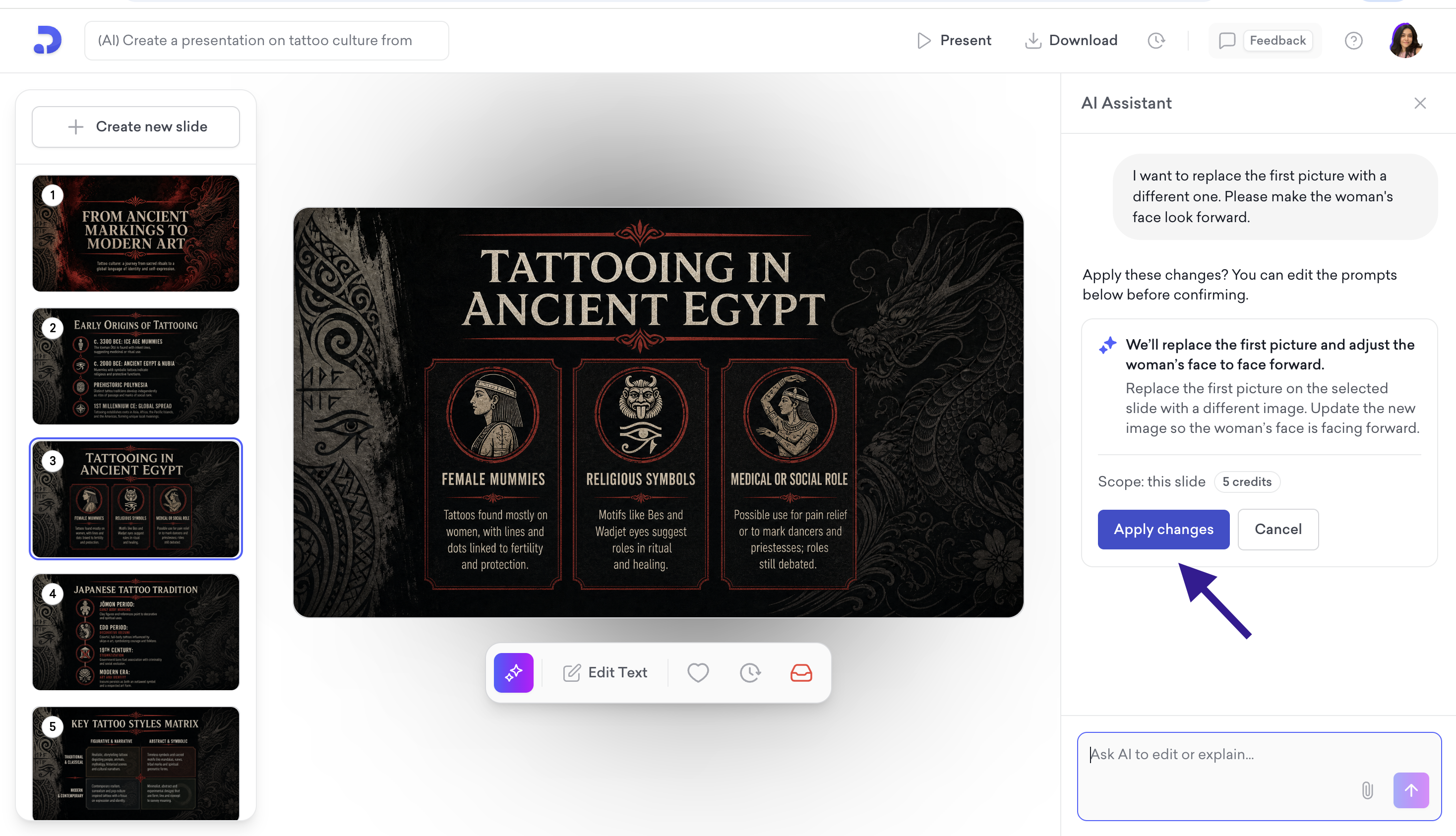
Click Apply changes.
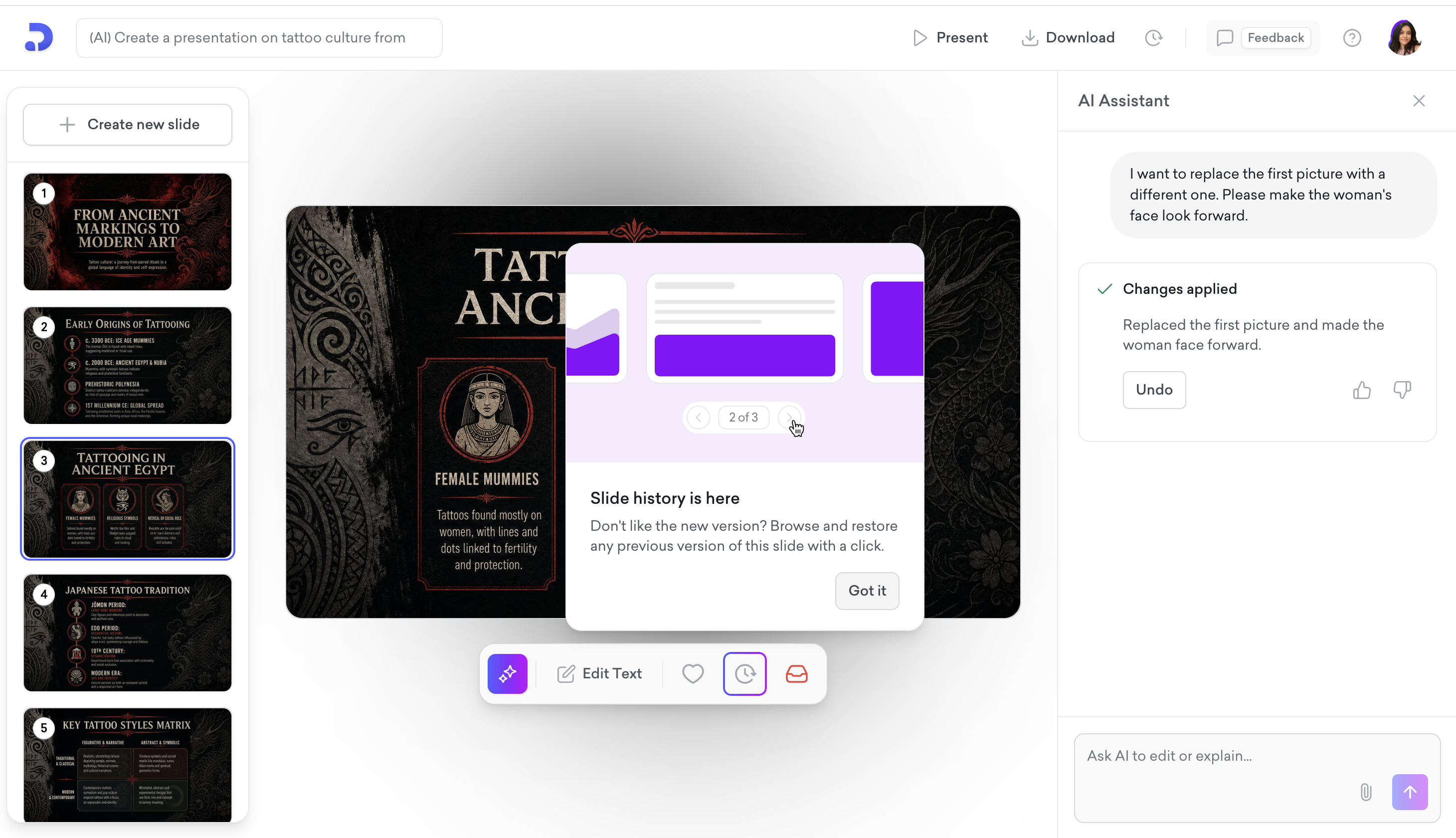
That's it! You'll see a "Changes applied" confirmation. If you don't like the result, click Undo, or use the slide history icon in the toolbar to browse and restore any previous version of the slide.
Please note that AI edits use credits from your plan. The credit cost is shown next to the scope before you apply the change.
That's all!
If you require any additional help, feel free to contact us at [email protected].